⭐ How To Use Your Zazzle Instant Download in Zazzle Events (Hobnob)

Zazzle Events (formerly known as Hobnob) makes it easy to turn your Zazzle invitation into a beautiful digital event that you can share instantly! Once you purchase an Instant Download on Zazzle, you can create a free event site powered by Zazzle Events - complete with RSVPs, updates, photos, and more.
Here’s how to get started.
Select an Instant Download on Zazzle
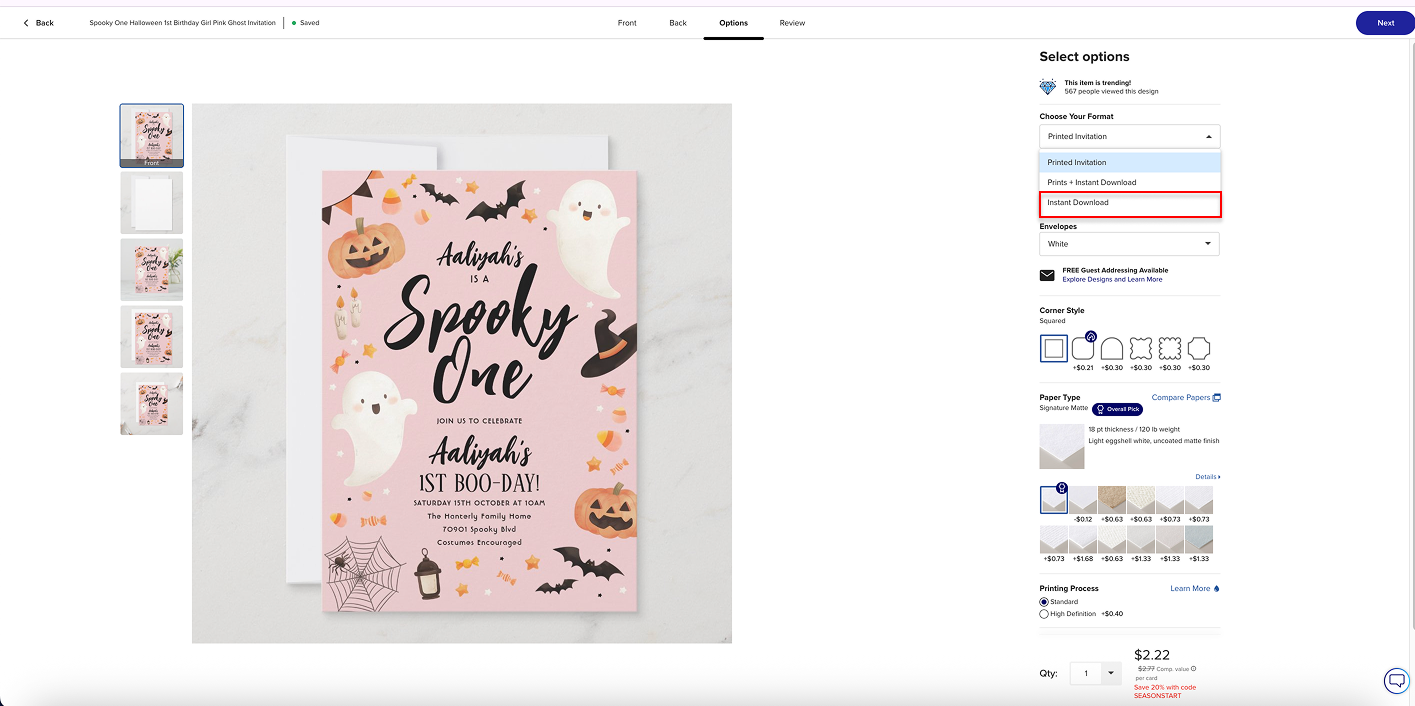
Once you’ve found a design you love, choose the Instant Download format:
- Open the product page.
- Look below the Add to Cart button for the Choose Your Format dropdown.
- Select:
- Instant Download (digital only)
- Printed Invitation (physical product only)
- Prints + Instant Download (both)
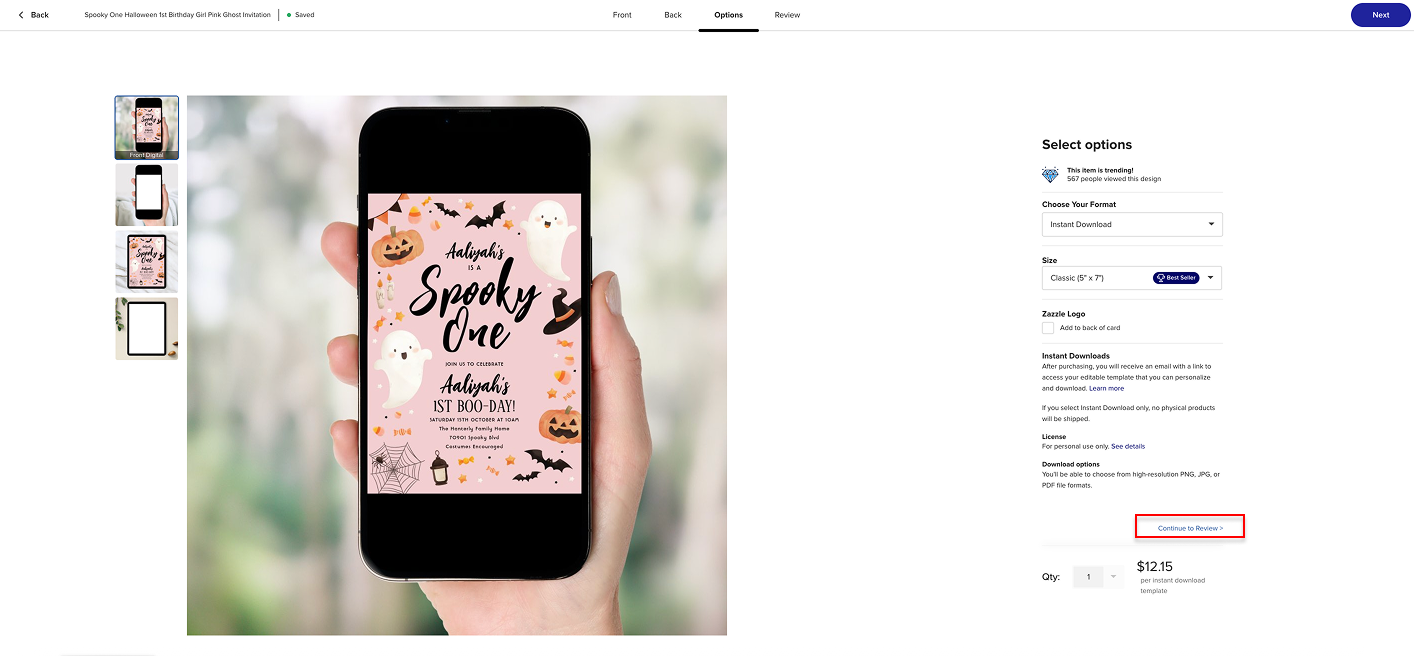
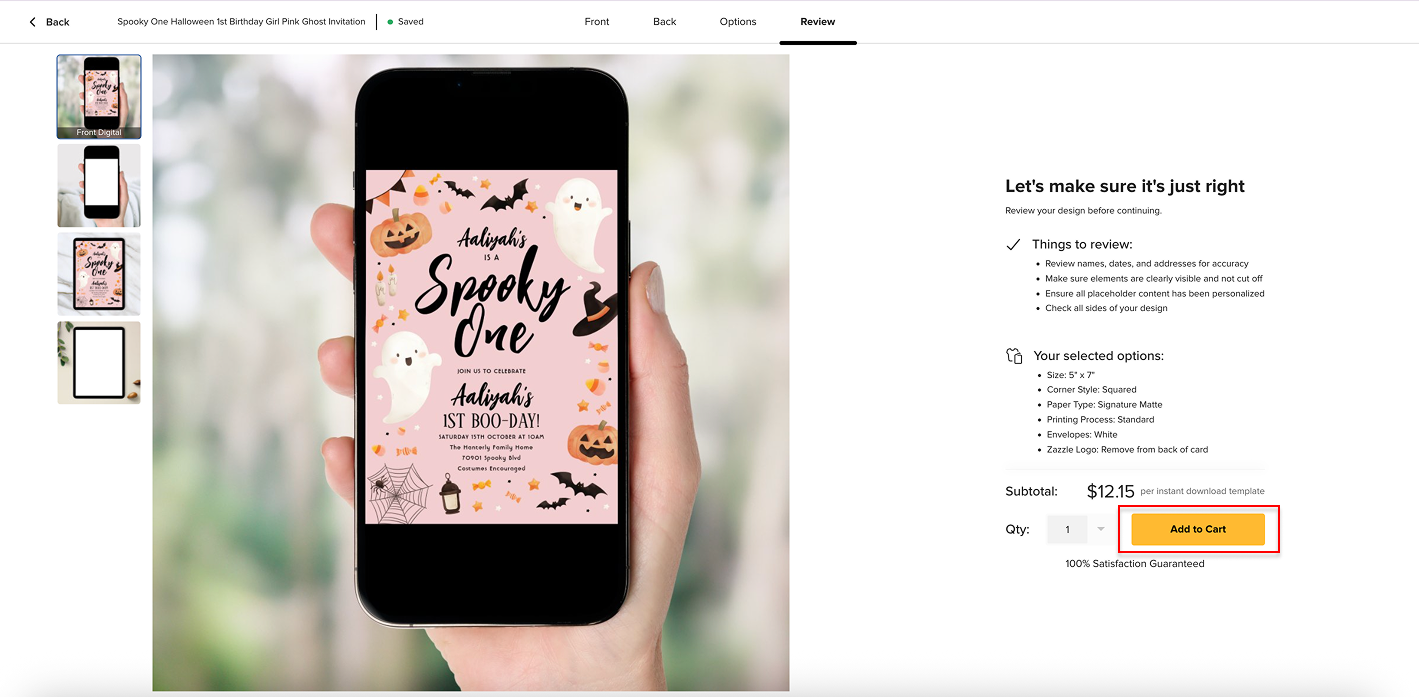
Add your design to your cart and complete checkout.
Create Your Event Site After Purchase
After your purchase is complete, Zazzle will show you an option to create a free event site powered by Zazzle Events (Hobnob).
Just follow the prompts on the page - your event details and design will automatically be sent to Zazzle Events (Hobnob) to help you get started quickly.
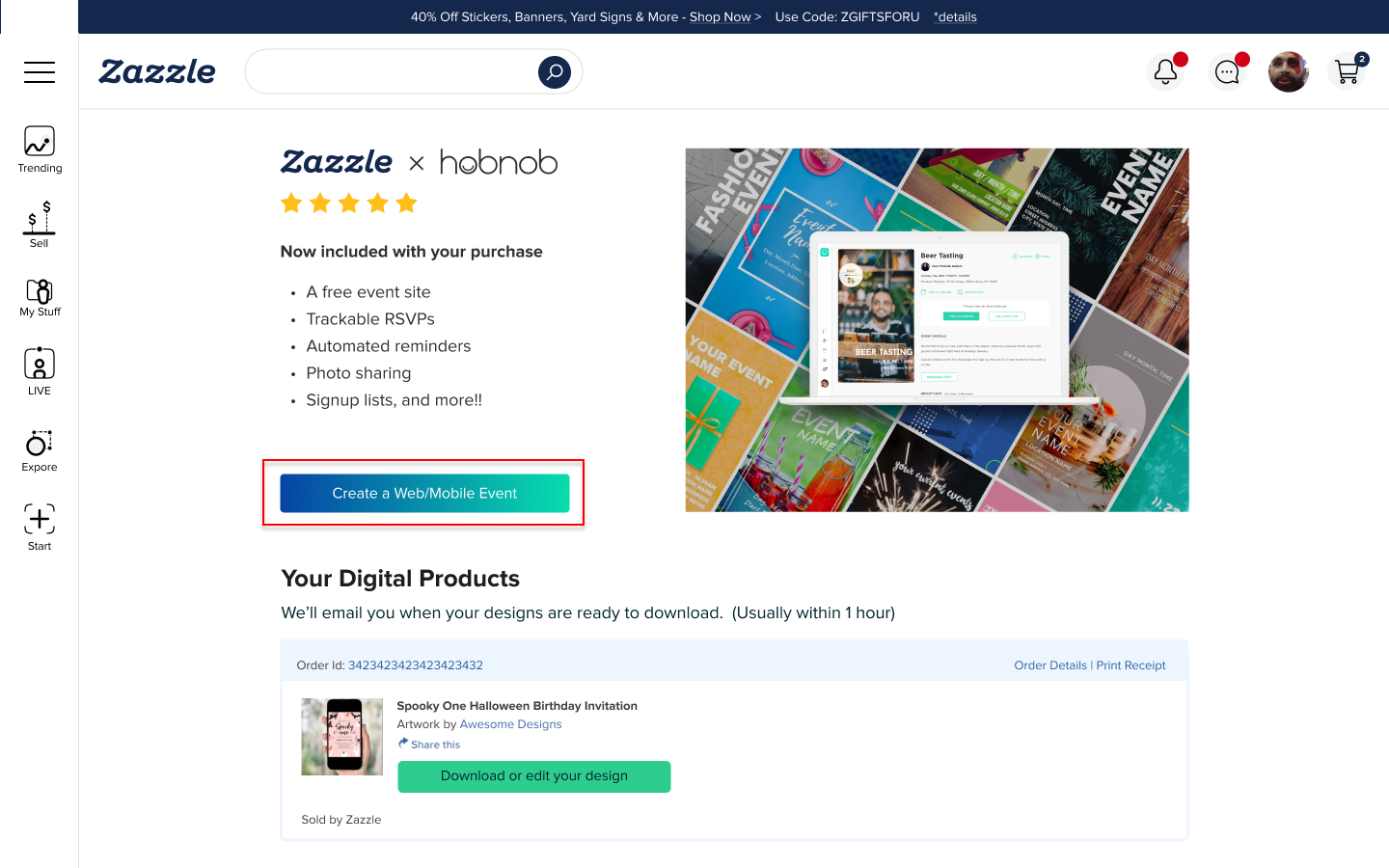
Tap Create Web/Mobile Event, then Let’s Go to continue.
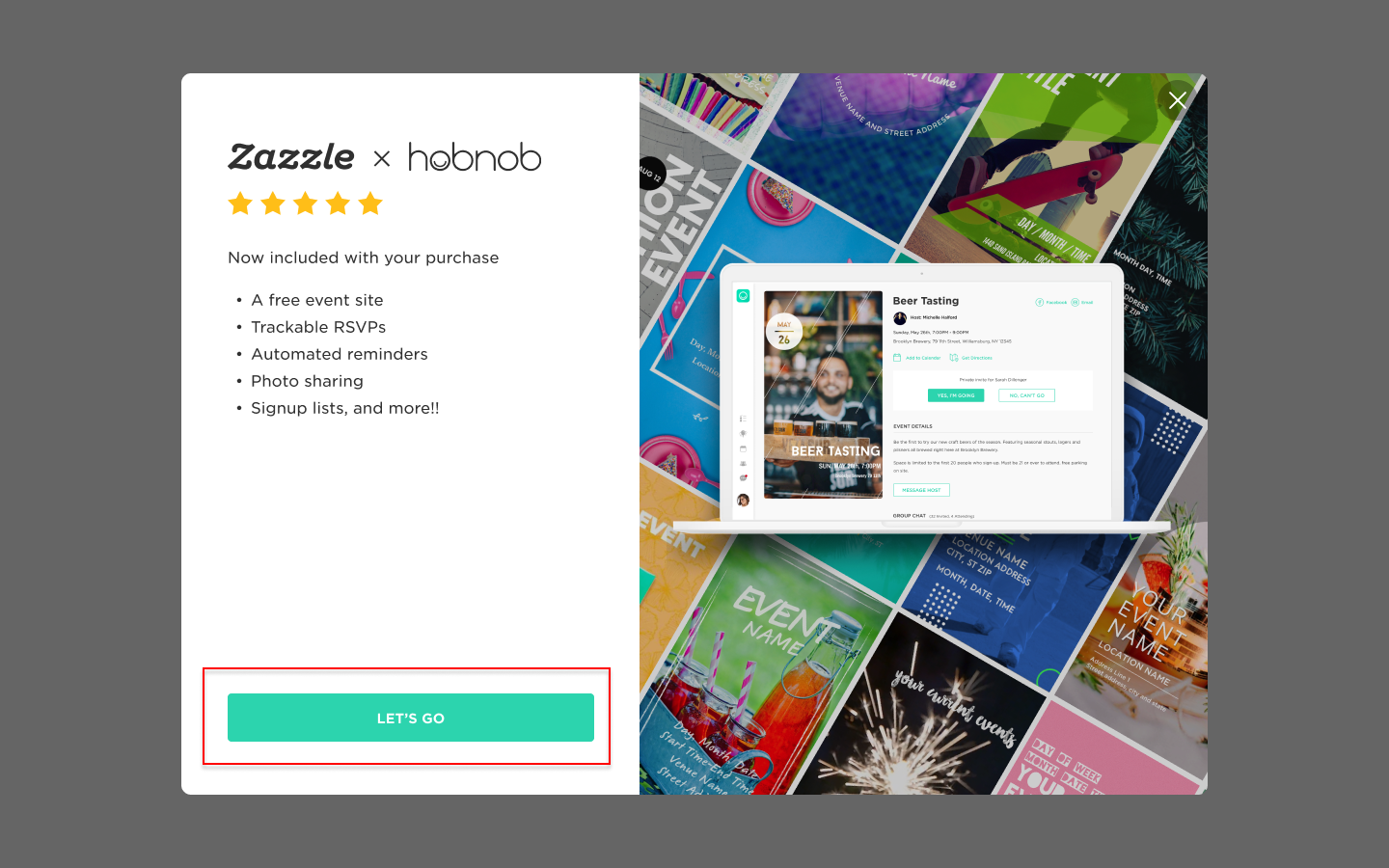
Set Up Your Event in Zazzle Events (Hobnob)
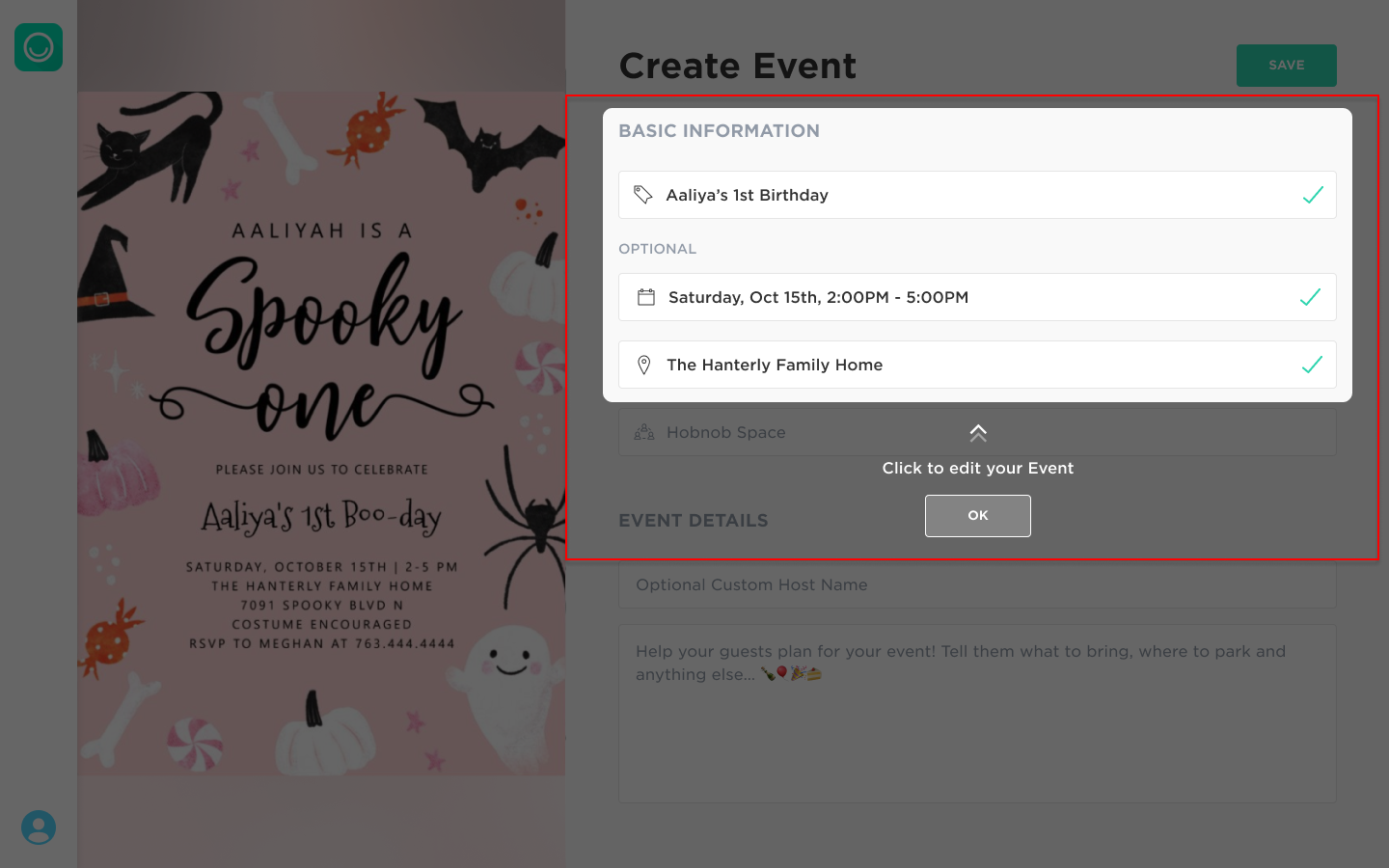
When you arrive in Zazzle Events (Hobnob), your design and event information will already be waiting for you!
Here’s what to do next:
- Review your event details and make any edits.
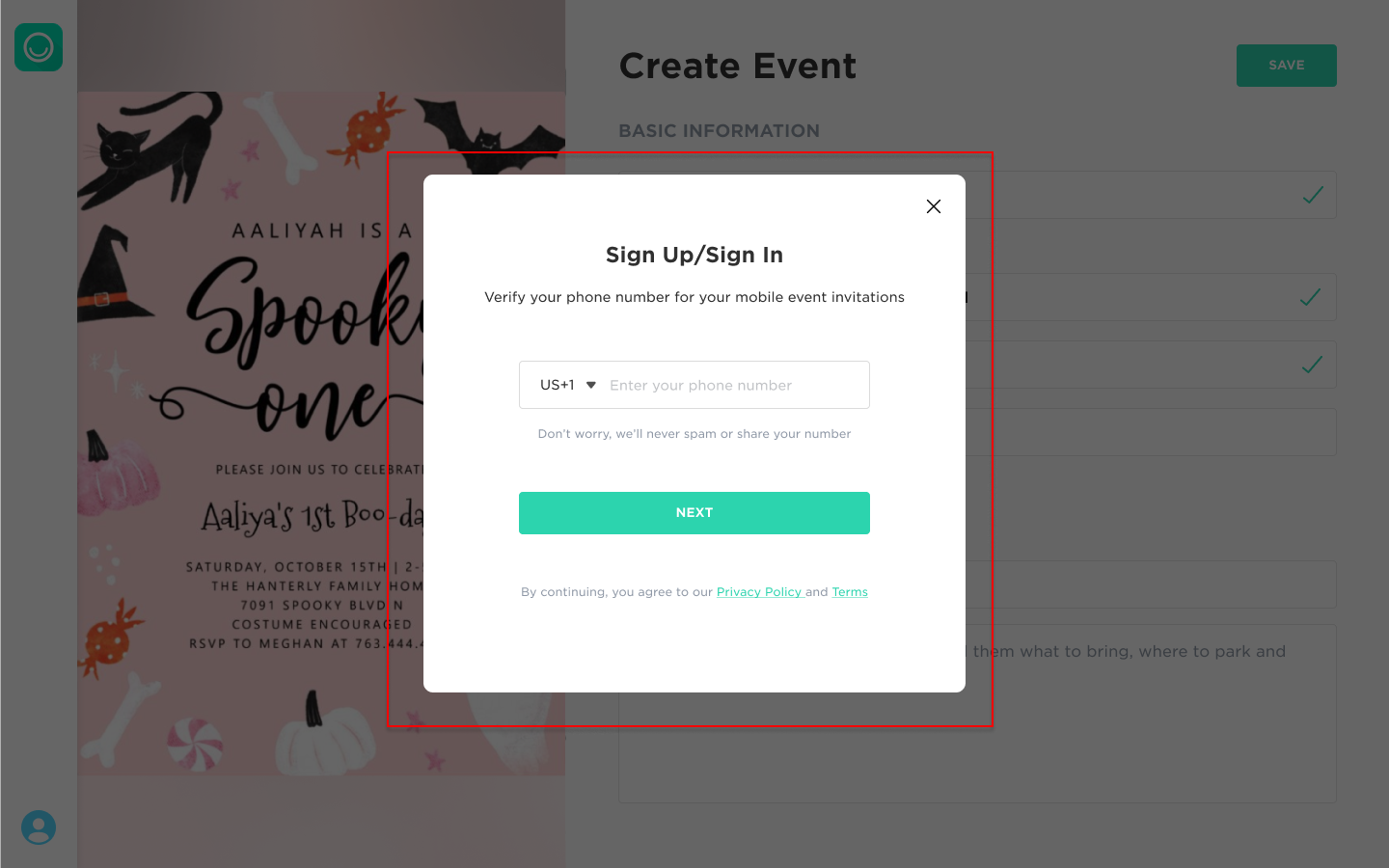
- Confirm your phone number so your event can be saved.
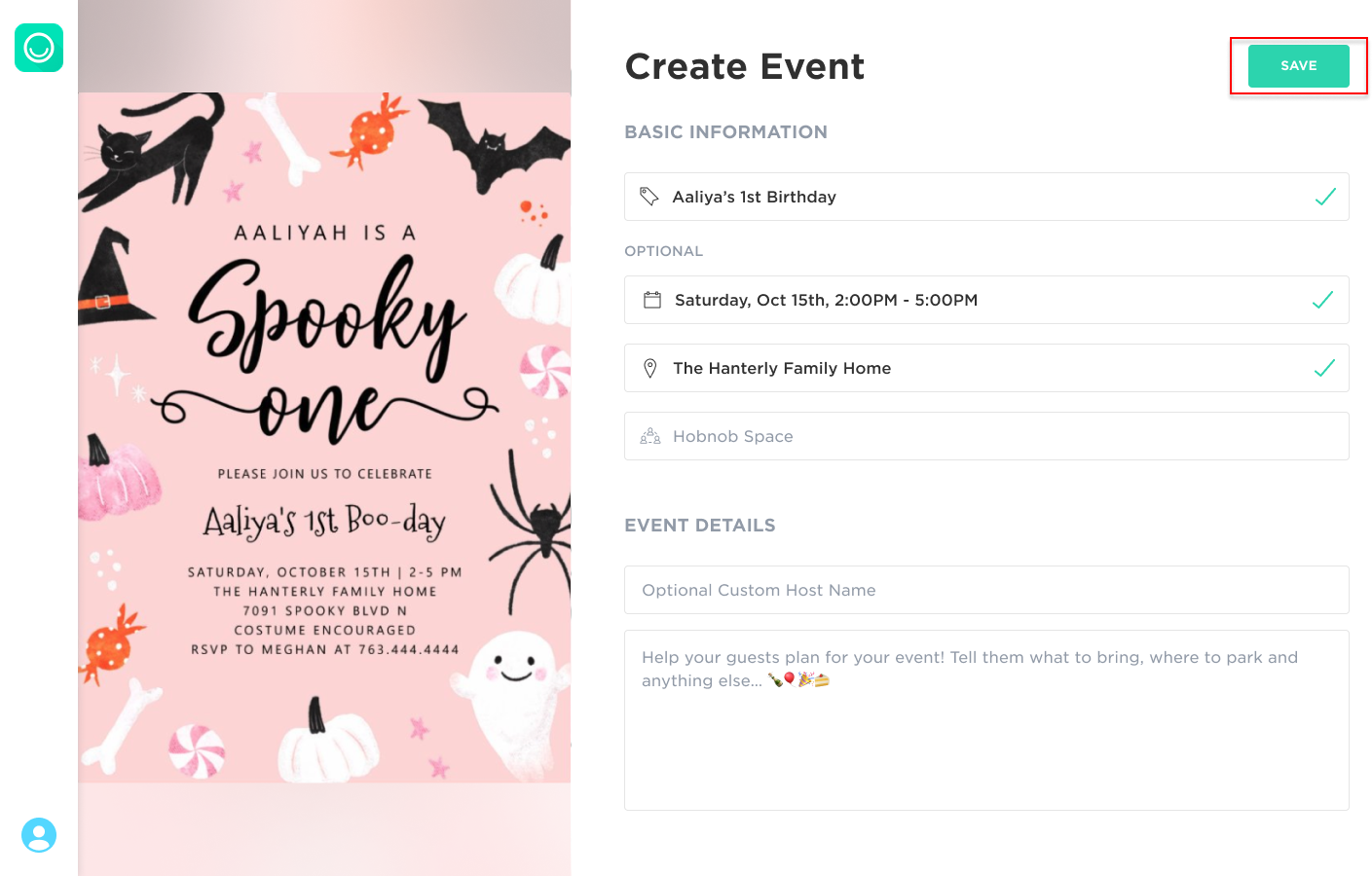
- Tap Save when you're ready.
- Tap Activate & Share to finalize your event and start inviting guests.
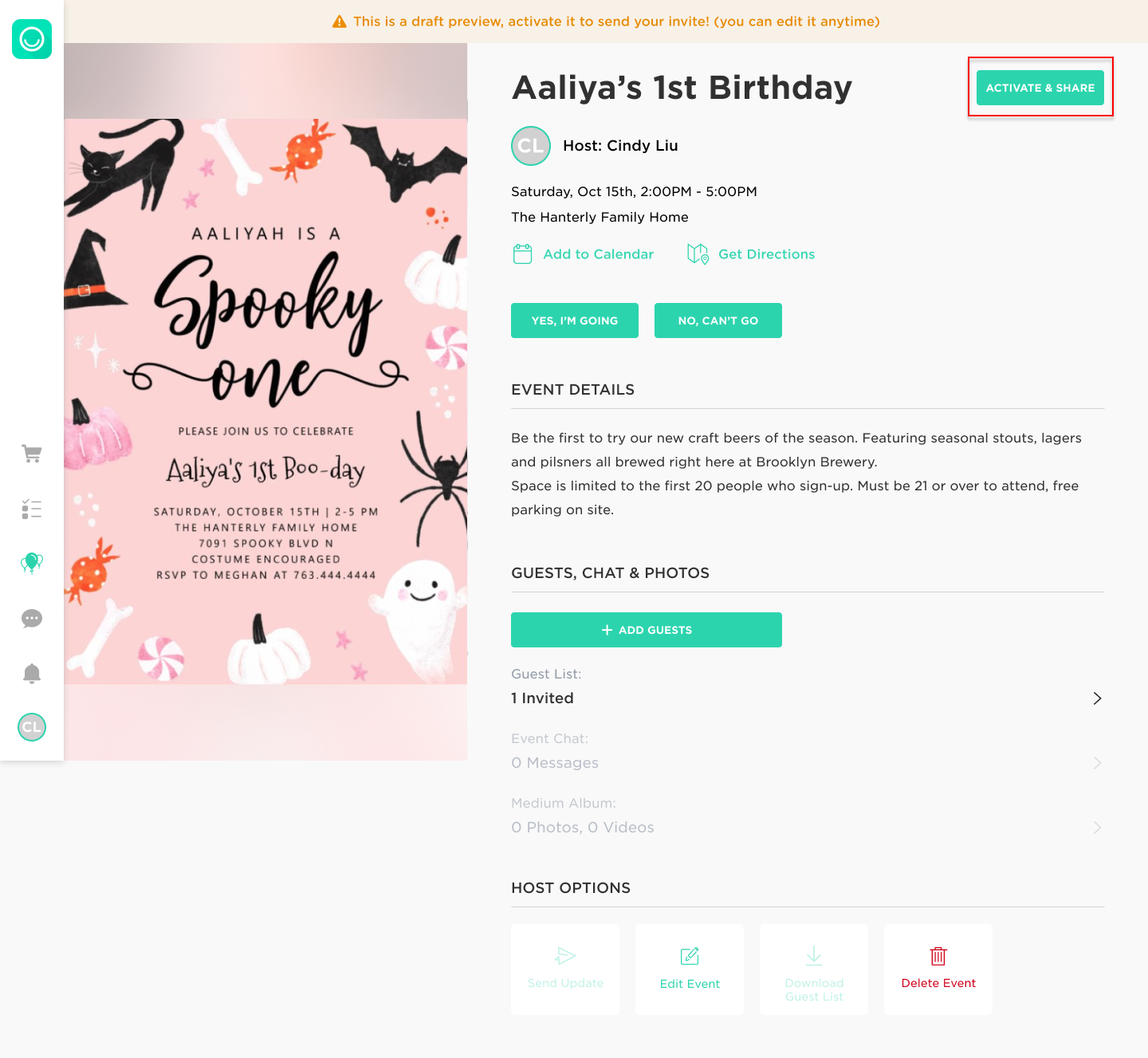
Your digital invitation is now ready to send!
Build Your Guest List
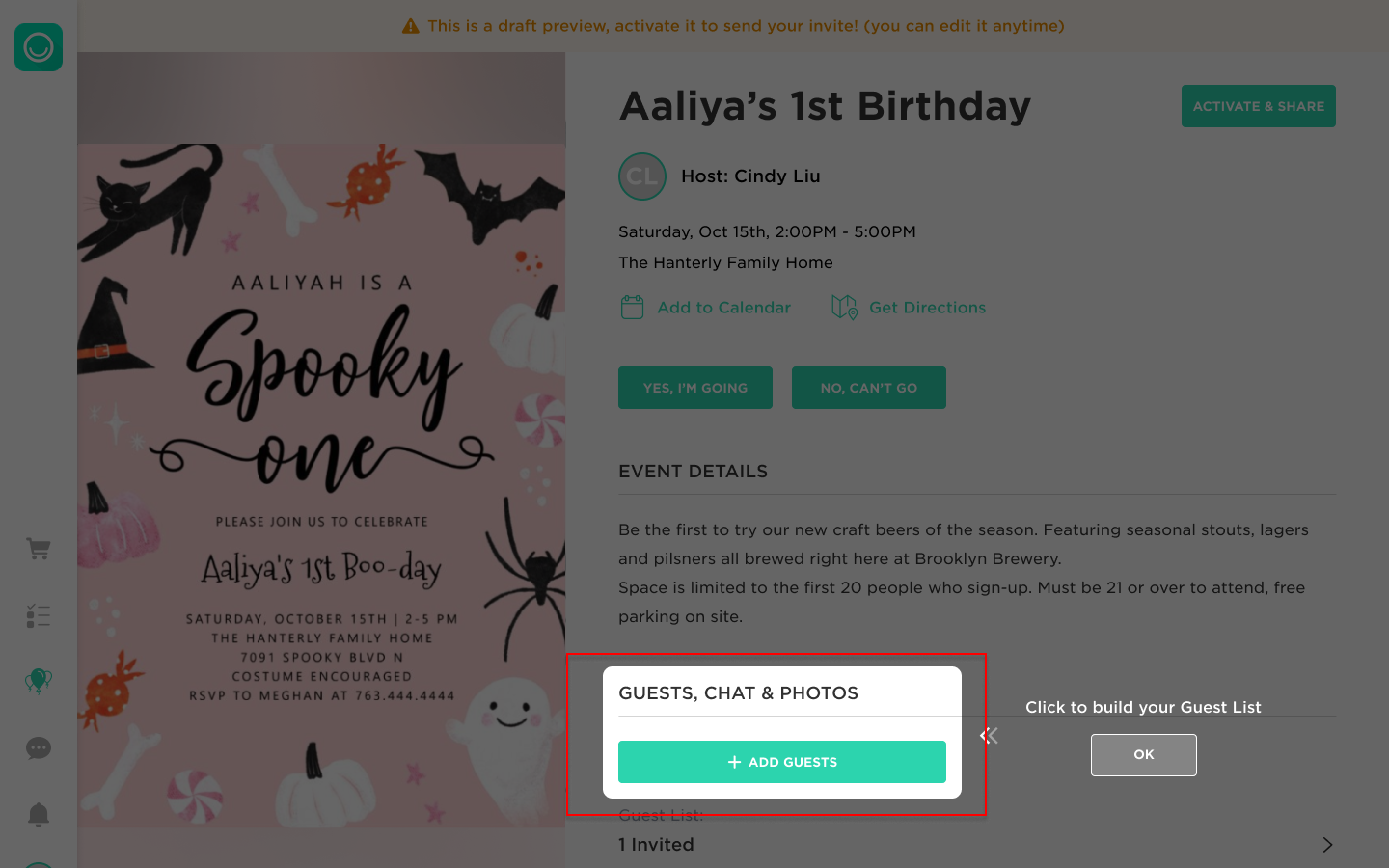
Click + Add Guests and you can add guests however you prefer:
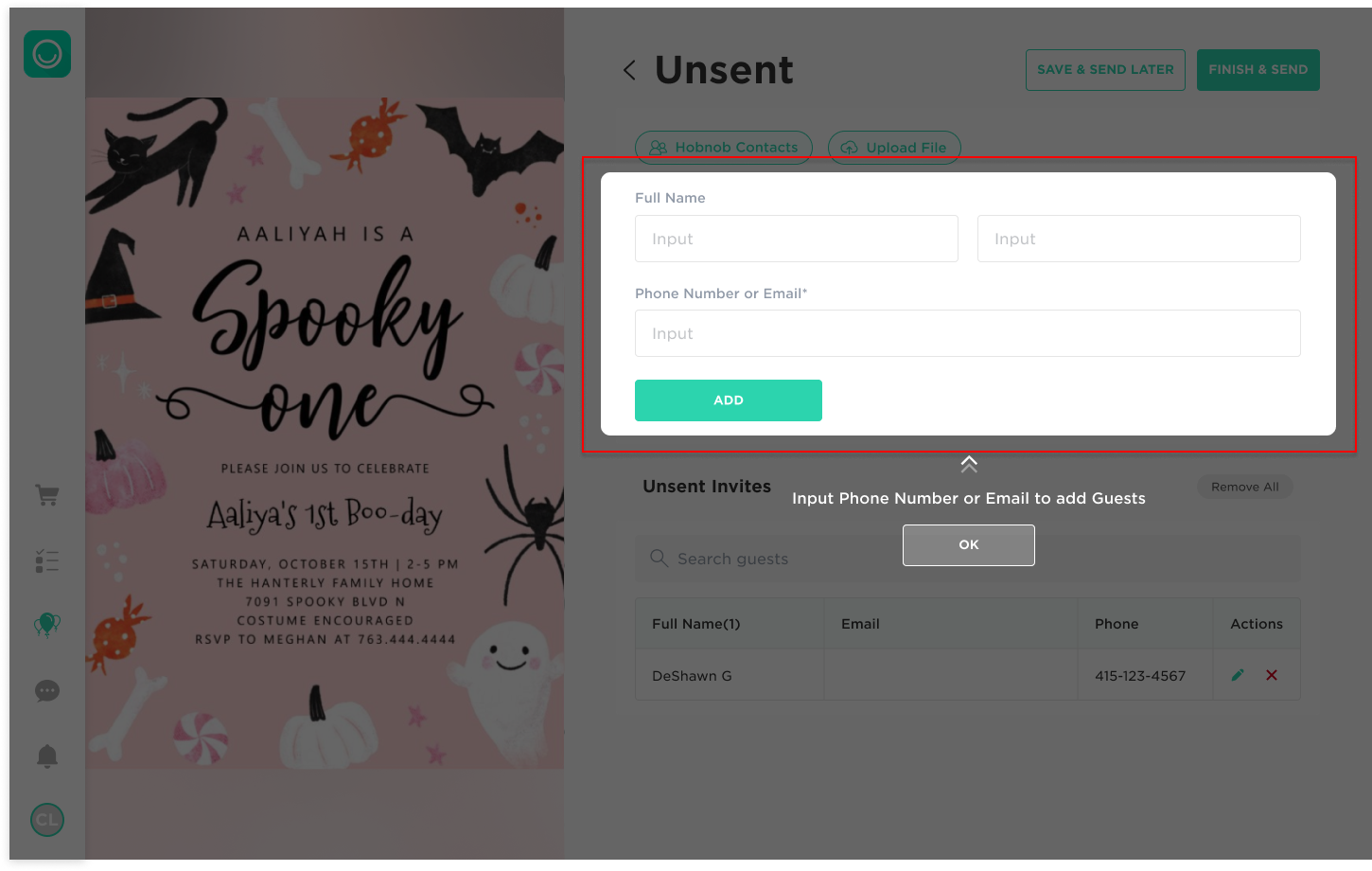
Option 1: Add guests manually
Enter names and phone numbers or email addresses one by one.
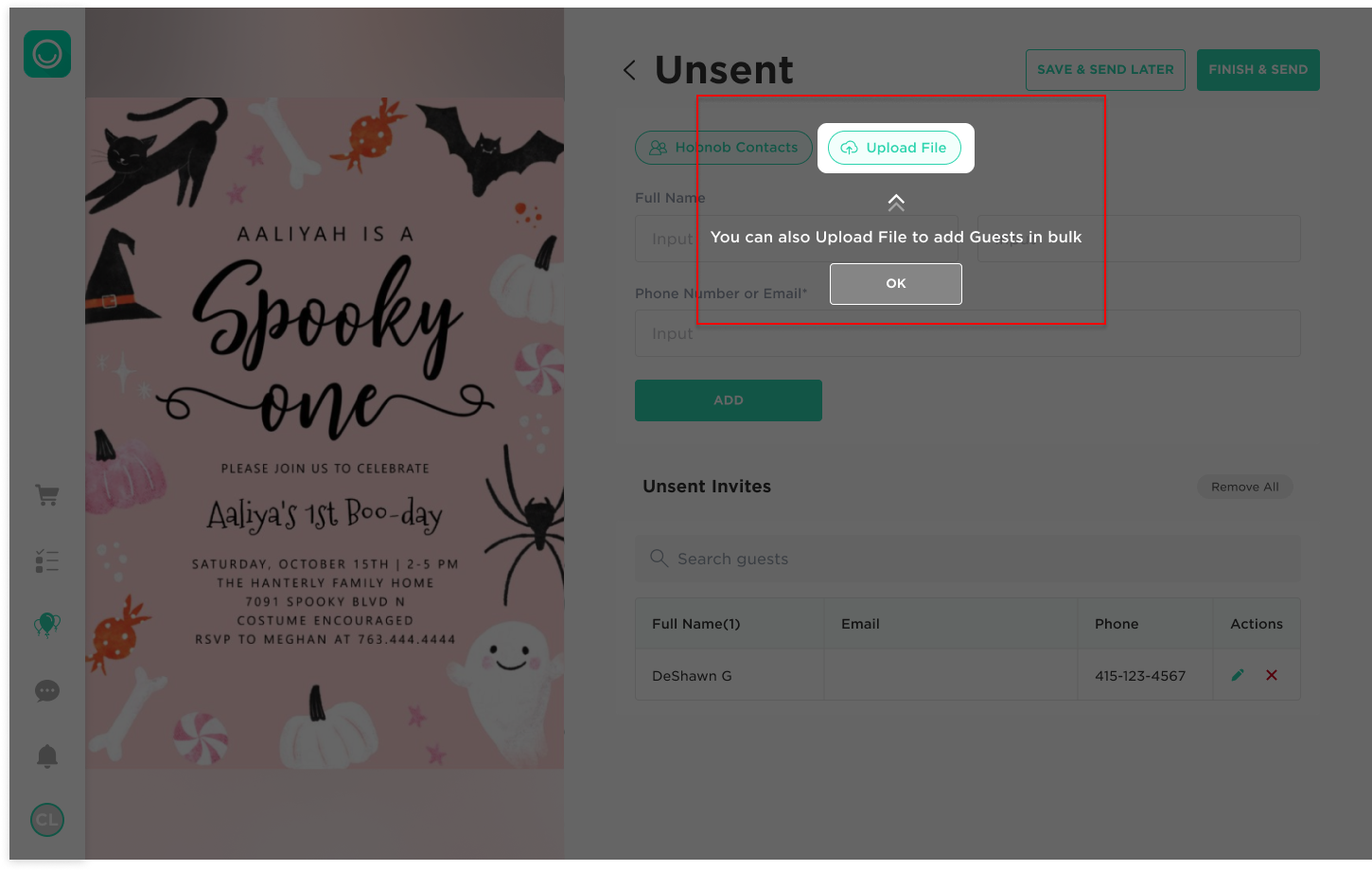
Option 2: Upload a CSV
Perfect if you already have a full guest list prepared.
Option 3: Download the Zazzle Events (Hobnob) app
Use the QR code to download the app and instantly connect your phone contacts.
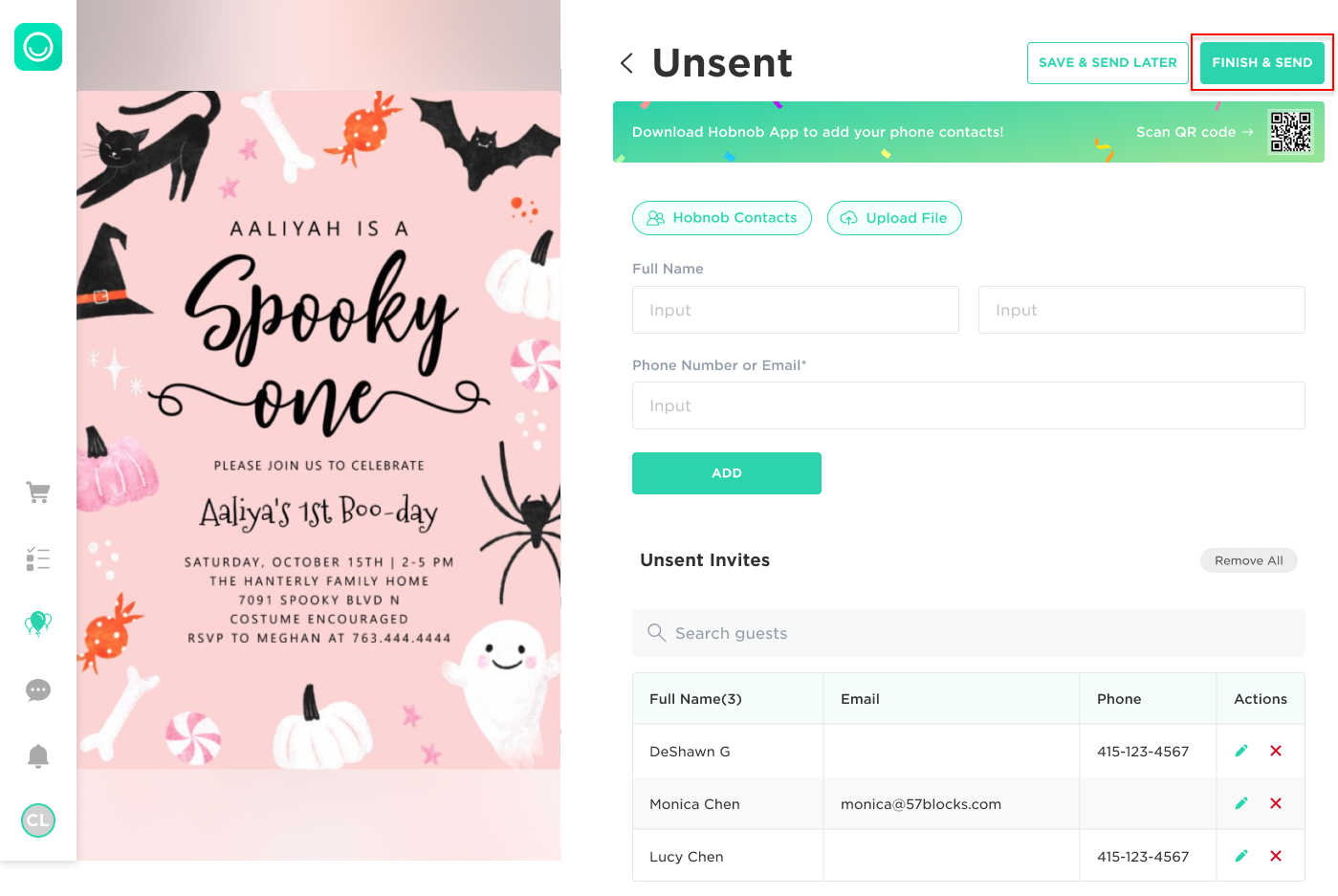
Once your guest list is set, tap Finish & Send and your invitations will go out right away!
Enjoy Your Event
Your guests can RSVP directly from their text message or email - no app required. You can manage RSVPs, send updates, and view photos from your event site.
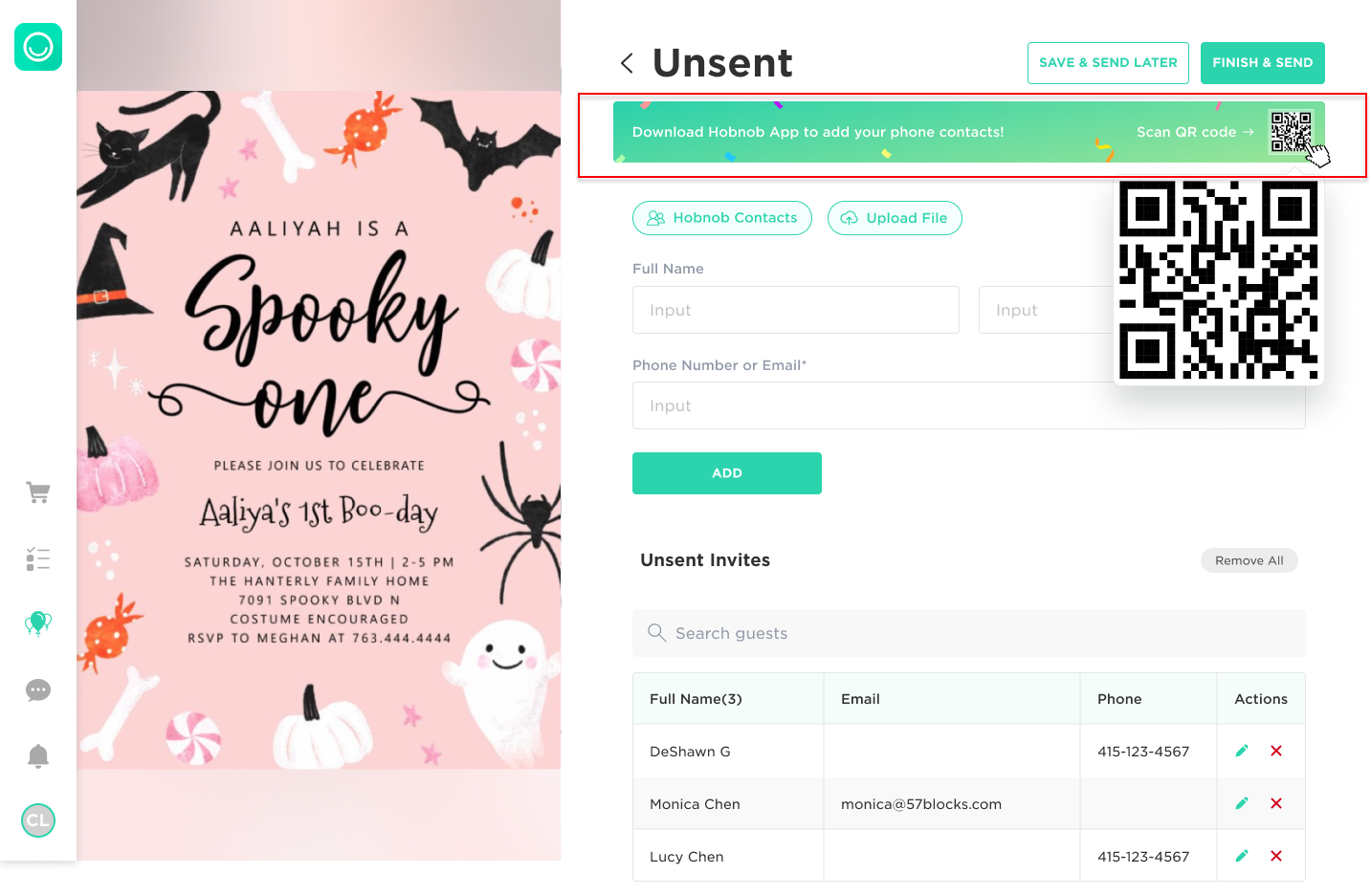
For the best experience, download the Zazzle Events (Hobnob) app to get real-time notifications and easy event management!
FAQs
Q: I downloaded the app - where is my event?
A: Make sure you log in using the same phone number you confirmed on the web. If you don’t see your event right away, check the Drafts tab.
Q: How do I edit my Zazzle design after my event is created?
A: On the web, tap Edit Flyer → Edit to return to your Zazzle design. Make your changes, then return to Zazzle Events (Hobnob) and tap Refresh to update your event.
Please check that your event details still match - reminders and notifications are based on the information in your Zazzle Events (Hobnob) fields.
Q: Can I find my event without the app?
A: Yes! Visit Hobnob.app and tap Sign In.
Q: I need more help - who can I contact?
A: You can also reach us at help@zazzleevents.com or help@hobnob.io or browse more articles in the Hobnob Help Center.
